serverpoint hosting banner

Tuesday, December 4, 2012

Review: Samsung Galaxy Camera

Review: Samsung Galaxy Camera
Camera. Reborn. - Samsung GALAXY CameraInteresting things are afoot in the consumer electronics industry. The phones as we know them have changed. The computers as we know them are changing due to tablets. Everything is getting smart and gaining ability to connect to the web. There are smart televisions. Smart microwaves. Smart fridges. Even smart thermostats. 

Why should cameras remain dumb? Samsung believes that they shouldn't. 

As a company that has tasted great success withAndroid smartphone, it has now given a smart makeover to a camera. Yes, Galaxy Camera is a shooter powered by Android. And by 'powered by' we don't mean that it uses Android to provide a few camera specific functions. 

Galaxy Camera is a no-compromise hybrid device. It can shoot pictures just like any other camera and it can allow you browse internet and check your mail just like any other smartphone.

But does it make sense? Do you need it? 

Build quality and hardware
Design is not a forte of Samsung's Android devices. Galaxy Camera, however, bucks the trend. We feel it is the best-designed Android device Samsung has made so far. The all-white body and the black lens look great. The camera has a minimalist design and has just three buttons - the shutter release buttons, power button and flash release button. The back of the device sports a huge- by the standard of cameras - 4.8-inch touchscreen. Like other cameras, this one has no navigation or settings buttons and photographers are expected to use the onscreen navigation to make changes. 
The build quality of the camera is great. It feels rock solid and the area under the right hand grip has a layer of thick textured rubber that helps in holding the camera steady while taking shots. 

Despite its point and shoot credentials, Galaxy Camera is not very pocketable. It is surprisingly heavy and big for a small compact camera. Yes, you can put it in a jeans pocket but the fit is awkward. Pockets in jackets or suits are better suited to Galaxy Camera. 

In terms of camera specifications, the device has a typical configuration. It is neither special nor lacks anything. It has a 16 megapixel lens with a focal length of 4.1mm-86.1mm with an effective (35mm) focal length of 23mm-483mm, giving the device an optical zoom of 21X. At its lowest focal length the camera has the aperture of F2.8. It has 8GB internal storage that can be expanded through a micro SD card of up to 64GB. It has a pop-up flash and an ISO range of 100 to 3200. 

But where Galaxy Camera leaves other shooters in dust is in its smart capabilities. The device is powered by a quad-core processor running at 1.4GHz speed. It has 1GB RAM and a variant ofMali 400 graphics chip. The camera runs on Android 4.1 aka Jelly Bean operating system and it almost all functions that an Android smartphone does. We say almost because you can't call or message someone over cellular network using Galaxy Camera. Though you can keep in touch with your friends using GTalk, Nimbuzz, Whatsapp or Facebook through this device. 

Shoot and share
During our use we shot hundreds of images and tens of videos with the device and found the results to be satisfactory in most instances. Galaxy Camera uses a very simple interface and people who do not want to delve too deep in settings can also get some good images out of this device. There are just three modes - auto, smart auto where a user can select the kind of scene he wants, and the expert, which allows users to change aperture, shutter speed and ISO speed. Given the fact that the camera has no physical buttons to change settings on the fly, it is a device more suitable to people who like to shoot images on auto modes. 

Thankfully, the performance in auto mode is fantastic. Under the favourable conditions - read good lighting - the camera produces images that are rich in colour, sharp and detailed. In terms of image quality it is easily up their among the best point and shoot cameras. The images do get a little soft at the extreme end of the telephoto lens (at 21X) but it is something all point and shoot cameras suffer from. On the other hand, the macro mode on the camera is fantastic, capturing the subject in great detail while giving a pleasantly shallow depth of field. 

The presence of 21X zoom also makes the camera a very good shooter for portraits as the high zoom allow shooters to click pictures with shallow depth of field. 

In low light conditions, the image quality takes a some beating, especially if you see them on a big computer screen. They lose details and have noise reduction that is too strong. Image quality is comparable to most point and shoot cameras but similarly priced mirror-less or hybrid cameras such as Nex-5 have better low-light performance. 
Galaxy Camera can shoot FullHD videos at 30 frames per second. The quality of videos is very good and focus is continuous. Movement due to hand shake is managed well. But if you move too fast or zoom in and out too quickly while shooting videos, the camera tends to lose focus for a second or two. 

The area where Galaxy Camera really comes into its own is what you can do with it other than capturing the images. Anyone who has used an Android phone with a data connection will find using Galaxy Camera incredibly simply and familiar. Just the way it is possible on a smartphone, you can share images from Galaxy Camera to your friends. You can edit images on the camera, you can apply special effects, you can geo-tag them with the help of GPS and you can upload them to Picasa, Dropbox or any other comparable cloud-storage service automatically. 

Finally, if required, you can use Galaxy Camera to write emails to your boss while holidaying in Goa, call up your friends using Skype, or navigate your way through a small town in Kerala usingGoogle Maps or book a ticket for your next vacation through a web browser and play Angry Birds. 

There is just one downside to all this added functionality - battery life. When used purely as a camera, the device can shoot around 170 images and a few video clips before running out of battery charge. But if you put a 3G SIM into it, the battery life takes a massive dip. The devices can shoot around 100 to 120 images when used with 3G. Samsung is aware of the poor battery life of Galaxy Camera and is selling the device an additional battery in India. 

Should you buy it?
Galaxy Camera is a unique device. And fun to use. It shoots very good images and decent videos. It has a very good zoom of 21X. It can be used as a functional smartphone. It is a smart camera that delivers on its promises. 

But before you rush out to buy it, here is what we suggest. If you want a good, functional point and shoot camera and don't care about sharing images with friends and family members as soon as you have shot them, get a basic camera. It will cost half of what Galaxy Camera sells for. If you are after fantastic image quality, get a DSLR or a good mirrorless camera. 

But if you want to have fun with images, Galaxy Camera should be on your shortlist. It does things that cameras are not supposed to do and does them well. Shoot, share and go crazy with the filters and Android apps - that is the premise of Galaxy Camera. As an added bonus you also get access to smartphone functions. If you can make use of the added functionality that Galaxy Camera offers, it is a superb deal even at an MRP of Rs 29,900. 

Pros: Good image quality, users can share images on the web with 3G connection, superbintegration with Android, availability of Android apps, can be used to browse web, check emails etc 

Cons: No RAW support, lacks easy access to settings for manual control, bigger and heavy compared to average point-and-shoot camera, poor battery life.

Is the Samsung Galaxy Note II worth Rs 39,990?


Is the Samsung Galaxy Note II worth Rs 39,990?

Samsung has just released its new Galaxy Note II ‘phablet’ in India for a whopping Rs 39,900. (For more details on the launch check out our live blog here.)
And now that it’s finally here, we do a quick round up of what we felt were the most pressing points around the launch of the new phone. Is it priced too high? Will it also have to compete with low cost tablets? And what are we most excited about?
The price: Ok, this is probably the first aspect that most users look for before they consider buying the smartphone. The Galaxy Note II will cost Rs 39,990 and while this might sound steep right now, remember that while the S III launched at Rs 42,000, it was available on retail for Rs 38,000. So prices are likely to be significantly lower within a few days of it retailing. As of now, Flipkart is offering it for the same price, but we’d be very surprised if this continues to be the trend.
Samsung has assured users of an interest free EMI option spread out over nine months which means that the smartphone will cost around Rs 4500 per month should you go for this. This is a great deal to offer, especially if you don’t want to burn a Rs 40,000 hole in your pocket.
AP
The screen size: This is the aspect that makes the Note II what it is: a phablet . It’s not just a smartphone to make calls with, but a 5.5 inch screen with1280 x 720 pixel density, which can drastically alter the video watching experience on a hand-held device. For those who like to watch movies, read magazines, the big screen should definitely be a big plus point.  But remember that you can’t just put this device in your jeans pocket.
What this also means, is that the Note is also competing with tablets. And some of these are priced a lot lot cheaper. Could this hurt the Note? Maybe.
The Stylus: As far as innovation goes, this is definitely a plus point, especially given that Samsung is trying to sell this device as the perfect companion for ‘creative’ people.  And we all fancy ourselves a little bit creative don’t we? Nice positioning Samsung!
The S Pen or the stylus is one feature that Samsung has definitely tried to improve in this device and it comes with advanced capabilities, like giving users the option of of adding Quick Commands to their stylus. This means that users can also simply press the S Pen button,to clip or edit selected content on the screen.
The Note II also has Air View capability, which means that even when users keep the S Pen approximately 10mm over the surface of the device it will still detect the presence of the stylus and allow you to preview emails, images, or videos without having to open them.
And perhaps most importantly it allows you to use it like a pen. According to Samsung Vice-President India, Asim Warsi, “The S Pen is tuned to sense 1024 different levels of pressure sensing. This can draw lines of depth, width, intensity”.
Warsi promises that this means that using the S Pen is exactly the same as using a normal pen and paper and can be used to write notes, sms and even emails. If it does everything Warzi says, this could be a huge boost for Samsung, especially since it will appeal to users who are not too comfortable with touch screens. Could this be the next big innovation for corporate users since the BlackBerry and QWERTY keypad?
The OS: Galaxy Note II ships with the latest Android OS Jelly Bean or Android 4.1. With features like Project Butter for faster functioning of the device, Google Now  ( a Siri like voice commands app but with the power of Google) , a smarter keyboard functionality and sharper notifications. For all Android fans, Jelly Bean should be reason enough to give this one a try.

Samsung Galaxy Note II sales cross 5 million in two months


Samsung Galaxy Note II sales cross 5 million in two months

Samsung’s smartphone strategy seems to hitting all the right notes. First the Galaxy S III became the world’s best selling device, with nearly 18 million devices sold in the third quarter of 2012. Now the Note II is also doing well with sales crossing the 5 million mark in the first two months of its launch.
The Note II was released in India in September and the device was first shown at the IFA 2012 in Berlin in August. The good sales figures for the Note II indicate that despite skepticism on the part of some critics, its big screen size hasn’t turned off potential customers.
Key features of the Galaxy Note II are a 5.5-inch (14-centimeter) screen with AMOLED touchscreen and 1280 x 720 pixel density. It comes with a super-fast, 1.6 GHz quad-core processor with 2GB RAM. It also has an 8 megapixel AF/ Touchfocus camera with full HD video recording and playback and front camera with 1.9 megapixels.
The Galaxy Note II is seen in this file photo. Getty Images
The phablet, comes in three versions, namely 16 GB, 32 GB and 64 GB. Both the 16 and 32 GB versions can be expanded to 64GB and the device is 4G enabled. However in India the device seems to available in 16GB versions only.
It also runs Android 4.1 aka Jelly Bean. It also comes with a stylus, which is designed to making writing, drawing etc much easier.
According to research firm IDC Samsung is the global leader in the smartphone market for the third quarter of 2012 with nearly 56.3 million sales. Rival Apple sold 26.9 million iPhone sales in comparison.
Meanwhile Apple has added Samsung’s Note II to its lawsuit against the South-Korean firm.
The Note II was launched in India in September and costs Rs 39,900.

Samsung beats Apple in US mobile market for first time ever


Samsung beats Apple in US mobile market for first time ever

New data has revealed that Samsung has beaten Apple as the leading handset manufacturer in the US for the month of October 2012. According to comScore, which released the report, both Google’s Android and Samsung are leading the US mobile market currently.
The report says that Samsung is the top handset manufacturer overall with 26.3 percent market share (up 0.7 percentage points from July 2012) while Apple has 17.8 percent market share (up 1.5 percentage points from July 2012). Google’s Android is the leading OS among smartphone platforms, accounting for 53.6 percent of smartphone subscribers, while Apple’s iOS has 34.3 percent.
The Samsung Galaxy S III in this file photo.
This is the first time that Samsung has beaten Apple as the leading OEM (Original Equipment Manufacturer) in the US. The report states, Apple ranked second for the first time on record with, followed by LG with 17.6 percent share, Motorola with 11 percent and HTC with 6 percent.
The number of smartphone users in the US is currently 121.3 million people according to the report which is roughly 51.9 percent of the mobile market and this represents a 6 percent increase since July.
Samsung’s Galaxy S III was recently declared as the world’s best selling smartphone.
According to research firm, Strategy Analytics Samsung sold an estimated 18 million S III devices in the third quarter of 2012,  when compared to iPhone 4S sales of 16.2 million.  The iPhone 5 was only launched in September unlike the Galaxy S III which was launched in May 2012.

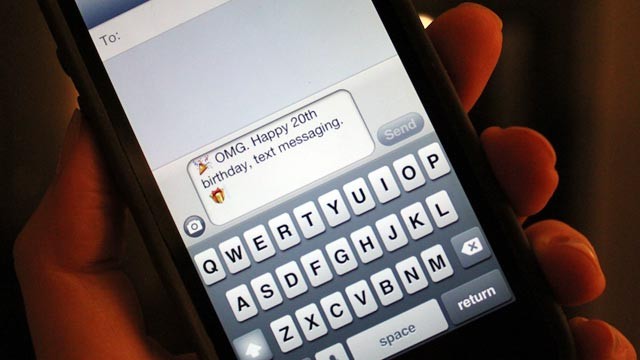
Happy 20th Birthday, Text Message, But You're Past Your Prime

Happy 20th Birthday, Text Message, But You're Past Your Prime

PHOTO: On Dec. 3, 1994 the first text message was sent in the UK.

It was 20 years ago today that the first text message was sent. It was Dec. 3, 1992, and Neil Papworth, an engineer working in the UK, sent the world's first short message service or SMS. It read "Merry Christmas."
But while most are entering their prime at age 20, the text message might just be past its glory years.
The History -- In More Than 160 Characters 
Papworth, however, was in his prime when he hit the send button on that first text. At the age of 22, Papworth was working for a company called Semea Group Telecoms, which had been working on a mobile messaging project for Vodafone, a European cellular carrier.
"It happened that day that Vodafone wanted to try sending a message to Richard Jarvis, one of the directors there, who was at a Christmas party. So we sat at the computer and typed him a message and then sent him the message 'Merry Christmas,'" Papworth told ABC News. "For me it was just another day's testing, it didn't seem to be anything big at the time."
But, of course, it turned into something very big -- at least once some of the consumer technology caught up. On that day in 1992, Papworth didn't send the first message with his thumbs on a mobile phone. He sent it from a big computer in one of Vodafone's offices to a Orbatel 901 mobile phone, which was the size of of today's office phones, Papworth explains.
(Papworth isn't the inventor of the text message; the origins of the idea date back to 1984 when Matti Makkonen, a Finnish engineer, was working with Nokia on mobile messaging.)
At that time, you could only receive messages on phones; you couldn't actually send messages from phones until a year or so later when phones from Nokia and others had the proper capabilities.
"Years went on and people were able to start to send text messages. It took quite a few years of it to take off," Papworth said. "But by the 10th anniversary it was fairly big by then."
The Rise and Start of the Fall 
And it became even bigger than that. In 2010, the International Telecommunications Union reported that 200,000 text messages were sent every minute and 6.1 trillion texts were sent worldwide. In June 2012, the CTIA mobile trade group reported that 184.3 billion text messages were sent a month in the United States -- up from 28.9 billion a month in 2007.
But in 2012, there is building evidence that text messaging is past its peak as more and more people have smartphones and use e-mail, instant messaging, iMessage, and other mobile messaging services to communicate.
In November, the New York Times reported that in the third quarter of 2012 text messaging was down. According to a report by Chetan Sharma, a mobile analyst, cell owners sent 678 text messages a month, down from 696 a month the previous quarter. It's not a huge hit, but it falls in line with other reports that text message usage is dropping.
"Texting isn't evolving, therefore it's declining," Patrick Moorhead, principal analyst at Moor Insights & Strategy, told ABC News. "There are way too many alternatives like iMessage, BBM, Facebook chat and Google Chat that are cross-platform that texting is a backup now for sophisticated users. Texting is more reliable but is declining as a primary tool."
Other experts also point out that users still need to pay for text messaging, while some of the other services are free, with no cap on the number of messages.
"It comes down to cost -- carriers still charge extra for text messaging after all these years, even though it costs essentially nothing to operate. It's pure margin," Chris Ziegler, a mobile phone expert and senior editor at The Verge, told ABC News. "Alternatives like BBM, iMessage, WhatsApp, and traditional instant messaging services, like Google Talk and Microsoft Messenger, only require a data package, which any smartphone user already has anyway. A savvy subscriber can dispense of their text messaging plan altogether and rely on data alone."
Additionally, with more of those services and social networks like Twitter and Facebook, users are finding texting to lack the features of the others. Ironically, Twitter, which says 60 percent of its users access the service on mobile, was based on text messaging. Like SMS' 160-character limit, Twitter has a 140-character limit and was designed that way because of text message capabilities.
"Twitter was inspired by SMS and we continue to embrace this simple but ubiquitous technology. In fact, Twitter's 140-character limit was designed specifically to allow for any tweet to be read in its entirety whether you're using a rudimentary mobile phone, or a more sophisticated Internet enabled device," Twitter wrote on its blog back in 2010.
But while Papworth admits that texting is past its prime, he believes it will still be very relevant for years to come. While a growing part of the population owns smartphones, which allow you to instant message, email, or connect to social networks, cellphone use without those features is growing at a very fast rate in emerging markets like India or Africa.
"Those handsets can do text messaging, but not everything can use data," he said. "Yes, the data is showing that it is starting to decline, but it's not going to go away. There is a lot of use for it alongside all the data services."

SMS@20: 10 ways text messages have changed your life in the last 20 years

SMS@20: 10 ways text messages have changed your life in the last 20 years

"As advertising blather becomes the nation's normal idiom, language becomes printed noise," Pulitzer Prize-winning journalist and author George Frederick Will once said. As the short messaging service, or SMS turns 20, it has swept aside in two decades known conventions about courtesy, relationship, language and communication.
It troubles linguists that SMS has made deep inroads in language and unfastened from the root the basics on which any language stands.
Take the case of a 13-year-old Scottish schoolgirl who handed in an essay written completely in text message jargon to understand the extent of influence of SMS on language. BBC had famously put up an extract from the essay on its website in 2003 and invited a debate on it to gauge readers' reaction.
SMS@20: 10 ways text messages have changed your life in the last 20 years
"My smmr hols wr CWOT. B4, we used 2go2 NY 2C my bro, his GF & thr 3 :- kids FTF. ILNY, it's a gr8 plc," said a chunk of the essay.
How has SMS changed our lives in the last 20 years?
Language
For those who assiduously believe that language can survive centuries of corrosion and assault by constantly evolving, there is both good and bad news. Whether the threat from cryptic and often lazy mobile phone communication is real or perceived is immaterial, what matters most is that it has morphed into a giant beast, feeding on the demands that time and career make on modern day professionals. Where is the time to send a handwritten note or a letter? In the electronic survival of the fittest, it is amazing that the SMS has outlived the dying email.
Perhaps language is the biggest casualty of SMS. There are the usual defenders of text messages. Before William Shakespeare came along, the courtly flourish of 14th century writer Geoffrey Chaucer's works were said to be the cornerstone for English language. Chaucer added new words to his language as did Shakespeare. But 21st century thinkers are contemplating modelling spoken and written English to fit the sensibilities of the current day and age.
What is wrong with 'u' if that has come to be acceptable in mobile communication in place of 'you' to save time and adhere to a character limit? You can rue the death of the graceful Queen's English, but modern linguists argue that it would be of no use if it ate up space and time when you needed to pack in as much as possible in 160 characters.
Clarity of thought and analysis
The ability to think clearly, analyse astutely and infer accordingly has been served a death knell with the 140-160 character texts that urge you instead to come right to the point. SMS, the precursor of social media tools such as Twitter and Facebook - where status updates and tweets come with a character limit - have dulled an entire generation's ability to think. The complex labyrinth serious discourses and societal issues are broken down to a easily comprehensible and overtly simplified 'ok', 'yes', 'no', 'agree' or 'disagree' without putting in the effort needed for analysis. Before one debate is solved, another crops up and issues jostle for space.
Attention span
The biggest hostage that text messaging has taken is our collective attention span. We text and speak, not lifting our eyes from our mobile phones to look at the person we are addressing. We text during meetings, longish speeches bore us, written communication that is more than a paragraph in length leave us irritable and flustered. The market has understood our needs, which is why we have booklets of witty SMS saying, novellas written in SMSese and our eyes glaze over anything that is over 160 characters long.
Spam
The unsolicited messages that land in your inbox everyday despite your best efforts to block them - spam has become an unwanted companion of our daily lives in the last 20 years. Advertisers use the low entry level barriers and the virtually intractable operation to bomb users with bulk deals that you have no use for. Imagine the pamphlets of the '80s and youngsters putting up posters advertising hair oil in the dead of the night on your home's boundary walls despite several warnings to understand the extent of intrusion of spam.
Emotions
Twenty years ago, a reasonable response to a confession of love would be an ornate handwritten letter or a walk in the park. Gradually all acceptable conventions of relationships have been remodelled into emoticons - an invention of text messages. If there is ever an electronic Nobel instituted, a smiley would be the top contender. Nothing expresses hope, amusement, love, friendship or excitement like a smiley does.
Accessibility
From a company's CEO, to a general physician, a local chemist or your boss - suddenly everyone's accessible. There is no longer the need to formally set up an appointment through a reticent personal secretary. SMS has reduced even the strictly formal relationships like that of an employee and an employer into a convivial, homely mush of a thing.
informality
'Won't be coming in to work today." This text would not have worked as method of putting in a leave application 20 years ago, what is perfectly acceptable now. 'R u bored?' a colleague texting you in the middle of a meeting is as acceptable as a future mother-in-law asking you to join you for a 'bite 2 eat @ 1 pm'.
Too Much Information
There is such a thing as Too Much Information - TMI for short. People you vaguely know texting you at midnight about their heartbreaks, their life's plans and aspirations. Texting your boss what ails your mother-in-law or your dentist your wedding plans in response to a simple query on shifting of an appointment - yes we are living with TMI.
Brevity and wit
It is solely thanks to SMS that we have a flourishing industry of one-liners that crop up during social conversations. SMS has kept wit real and sharp for the times. No one has the attention span to wait for the host to finish the punch line of a joke at the dinner table. They'd rather be 'forwarded' the latest SMS joke doing the rounds. The art of quipping has evolved over years through elaborately planned and tested text messages.
The courier of romance
Perhaps nothing has evolved as much as romance over the last two decades. In electronic age, love is defined by logged in hours and Skype conversations. And even before that, by late night texting under the quilt so as not to wake up the rest of the household. 'Love u 2' has replaced verbose cards and flowers. Emoticons summarise the depth of feelings of a heart broken by failed communication. We have learnt to adjust our expectations to fit love into 160 characters.

SMS turns 20 today: But is it losing out to IM and tweets?


SMS turns 20 today: But is it losing out to IM and tweets?

The SMS turns 20 this year.
The first ever text message was sent by engineer Neil Papworth from his personal computer to Vodafone’s Richard Jarvis in December 1992 which read: “Merry Christmas”. But nearly 20 years after its advent there’s a growing belief that the short messaging service or SMS is losing out to IMs and tweets.
Nearly four billion people across the globe use SMS but it appears that the volume of texts sent as SMS has undergone decline, according to a report by media watchdog Ofcom.
However as this Guardian piece points out, IM’s and Tweets have a long way to go before they can conquer SMS. According to a survey by mobile communication firm Acision, it is still the most popular way to message despite competition from email and social networking messaging services with 92% of smartphone users still preferring to text.  (Note: The Guardian piece is a must read if you want to know the history of SMS)
And this could very well just be a ‘first world problem’.
While smartphones might be popular in Europe and the US, not everyone in owns a smartphone in countries like China and India where features phones are still in vogue.
SMS turns 20 this year. AFP
The first commercial SMS services started in 1993 in Sweden, followed by US and UK in the same year. In 1994, Nokia announced the Nokia 2110, which the Finnish company claims to be its first SMS-enabled GSM phone but its predecessor the Nokia 1011 could also send and receive SMS messages.
The number of text messages sent in Britain peaked at 39.7 billion at the end of last year, but it is now down to 38.5 billion, following two quarterly declines.
But there’s no doubt that with the rise of smartphones, and apps such as Whatsapp, Google Talk, BBM (for instant messaging) etc, the traditional SMS will face a tough battle. The fact is that apps like Whatsapp, Google Talk, are free unlike an SMS which still costs a nominal fee.
And thanks to the culture of Twitter,  people often tweet out what’s on their mind rather than send an SMS to friends.

Monday, December 3, 2012

Windows

Meet the new Windows

Windows 8 on a laptop


Windows 8 on a laptop

Microsoft is betting the farm on its Metro user interface, making appearances on its Zune media player, Windows Phone and Xbox Live platforms.
Now, the interface is making its way to Windows 8, the newest version of Microsoft's long-running PC operating system. With the Consumer Preview of Windows 8 now available, we took the platform for a quick test run.

Preparing for installation
My home laptop isn't exactly a beast of a machine, being equipped with a single-core 1.86GHz Celeron processor, 2.5GBs of RAM and an integrated Intel X3100 graphics card. In other words, it's not powerful at all. It struggles to play the eight-year-old Counter Strike: Source at a stable 30 frames per second, for one. 
My home set-up includes the much-maligned Windows Vista, which runs relatively smoothly, although I took the liberty of disabling the Aero interface to improve performance. Of course, Vista takes its time to get going, as PC operating systems tend to do, taking about a minute or two to get to the home screen.
After downloading the Consumer Preview, I went about burning the .ISO image to DVD, although you can download a setup file if you want.
I then spent 20 minutes deleting and moving files on one partition so I could install the preview on there. What ended up happening was that I "upgraded", erasing my Vista install in the process. The Windows 8 installation process didn't really offer many options, so I kept on clicking "next", hoping to see my desired choice (installing to a partition and dual-booting between Vista and 8).
But in a neat move, all of my media, documents and other files remained, so the only thing I had to do was reinstall my programs. This is where something like Ninite.com comes in handy, installing a variety of programs in one go.

Onto the Windows 8 experience
Upon booting up, you're greeted by a pretty lockscreen, similar to tablets and smartphones. The screen displays the time, date and other notifications, with users simply hitting the spacebar or dragging it upward to proceed to the login screen. It's a pleasant touch, showing that Microsoft is paying attention to the little details.
You'll then be required to log in or sign up for a Windows Live ID, a polarising move on the part of Microsoft.
On the one hand, people making use of existing Microsoft products (Xbox Live, Windows Phone, Hotmail) already have a Windows Live ID already and can reap the benefits.
But on the other hand, you have the scores of people, only using Microsoft products because they didn't care or had no other viable alternative (i.e. Windows).
Nevertheless, after a few minutes tweaking settings, we're greeted by the beautiful Windows 8 start screen.
Resembling the Windows Phone environment, the start screen is filled with large, colourful tiles, embracing the Metro user-interface. The tiles can also display real-time information in a manner akin to a widget, such as the last instant message chat or app notifications.
If anything is clear about Windows 8's start screen, it's that it has been designed with a touch interface in mind. Scrolling left and right through the various tiles is accomplished with the scroll wheel, or using the barely noticeable bar at the bottom of the screen.
It's not exactly the worst way to navigate through the new screens, but it's not ideal either. And this approach extends to the applications themselves.

Using Metro apps
In applications, you'll use your mouse for the most part and that's where legacy Windows users could be a tad puzzled. Gone are the 'minimise', 'full-screen' and 'close' buttons, replaced by mouse gestures or a button press.
So, instead of minimising an app, you can simply hit the Windows button on your keyboard to go to the start screen. Closing an application with a click of 'X' is no more; you'll need to drag the application downward.
Forget about going into windowed mode too, the apps run in full-screen for the most part.
We say "for the most part" because the Metro apps differ from Android and iOS when it comes to multitasking. These apps can be "snapped" together, with up to three applications running side-by-side. It's a great change from the "one app at a time" mentality of other platforms.
Launching a Metro application is a pretty smooth process, accompanied by a slick animation and no hourglass icons, as is the case with legacy programs. However, apps do take some time to load information once open, such as news articles and the like.
The Windows Store has also received prominent placement on the start screen, with users able to download a couple of hundred apps already.
Whether it's Wordpress, AccuWeather or Kindle, these apps are well-designed for the most part. And the Windows Store will be the only place to get Metro apps, although users can download legacy programs too.

Not just a new look...
The next new feature is the task manager on the left-hand side of the screen.
Simply mousing over the left-hand corners brings up a panel featuring active apps, letting you switch between them on-the-fly.
This task manager works in both Metro and legacy Windows modes, and makes for a pretty useful addition, letting you close programs by right-clicking on them too.
Hovering over the right-hand corners of the screen brings up the Charms Bar, featuring "search", "share", "start", "devices" and "settings".
Clicking "search" brings up a universal search option, letting you sift through applications, photos, videos and files. For instance, searching for "Nokia" brought up my photos taken with Nokia phones.
"Search" is a cool concept, but we wish the functionality would drill down to app data and contacts as well. Granted, you could just open up the relevant program too, but it would be useful to search for a podcast and have it appear without opening the podcast app.
The "share" feature is another baked-in concept, bringing a simple way to share items. Unfortunately, it didn't seem ready for prime-time, only letting you share via email, if it let you share at all.
The "start" option is pretty self-explanatory, taking you back to the Start screen no matter where you are.
The "devices" feature is pretty useful too, showing you what's connected to your computer and giving you options for a second monitor.
The one problem I had was that my Omnia 7 Windows Phone wasn't natively picked up via the "devices" option, having to use the Zune software instead. It's slightly disappointing, especially with Microsoft trying to build an ecosystem across devices. But with Windows Phone 8 set to feature tighter integration, we'd love to see what happens next.
The "settings" feature is another self-explanatory one, letting you tinker about with things such as WiFi connectivity, notifications, brightness and language.
You'll also need to visit "settings" to turn off or restart your computer – a longer route than simply clicking "start". Despite this downside, it's a quicker way to tinker with your important settings than hitting the control panel in desktop mode.
The Metro screen also includes a number of preinstalled applications, such as an Xbox Live app, Xbox Companion for controlling your machine, a clean-looking Bing Maps tool and a sleek PDF reader (called... "Reader").
However, there are a few other preinstalled apps too, such as the SkyDrive cloud storage service, "Messaging" for IM chats as well as "Mail" for Hotmail, Gmail and Exchange.
They all work well enough, but are a tad anaemic when it comes to options really. For instance, there's no visible way to add my Webmail email service or other IM protocols. Despite these weak points, the apps do a good job anyway.

The traditional Windows desktop
The Metro environment might not be to everyone's tastes, especially when using a keyboard and mouse. So, Microsoft saw it fit to let the traditional Windows 7 desktop into the fray.
The legacy desktop looks all too familiar, but there are a few areas Microsoft has changed, with the Charms Bar and multitasking manager available from here too.
The most radical change though, is the removal of the ubiquitous Start button, a move sure to draw the ire of many a user.  This means that you'll need to rely on pinning your programs to either the taskbar or create a desktop shortcut. Clicking in the old Start button space now takes you to the Metro start screen instead.
Personally, it would've been preferable to have a dropdown menu on the legacy desktop to go through all installed programs, instead of navigating to program files or creating shortcuts.
The Windows Explorer interface has seen a few tweaks too, still playing host to the likes of "file", "manage" and "view" - but with an additional "Ribbon" panel too. The panel features context-sensitive buttons for the most part, letting you copy items to different folders, burn files to disc and change your folder view pretty quickly.
There are also some smaller changes and tweaks too, such as the revised task manager. The new utility shows you a detailed breakdown of CPU, network and memory usage. Additionally, you can also disable and enable programs that you'd like to start automatically upon booting – no complicated menus needed.
The biggest improvement is under the hood – Windows 8's legacy mode runs at an impressive speed. From the above-mentioned boot-up times to general navigation, Windows 8 is much friendlier to older computers than previous iterations. Users only need a 1GHz processor and 1GB of RAM if they're running a 32-bit system, and 2GBs of RAM for 64-bit rigs.
Even if you fall below the system requirements, chances are that your machine can handle Windows 8. Kudos to Microsoft for resurrecting old hardware then.
Besides that, the traditional Windows desktop is still the same system you know and love (or loathe!). Older applications run without a hitch and connected gadgets work and charge just fine.

Conclusion
It's clear that Windows 8 is designed with touch input in mind, with large tiles and stylised fonts making for a finger-friendly experience in the Metro environment.
Despite this, using the new interface on a laptop is a pretty pleasant experience, occasionally dipping into slightly annoying territory.
Microsoft still has a few months to chop and change settings ahead of the speculated October launch, so here's to them ironing out those kinks. Regardless, there's a lot to like about Windows 8 and we can't wait to play with it on a tablet.

Review: Windows 8 on a tablet

Review: Windows 8 on a tablet
Microsoft's latest operating system represents a gargantuan departure for the company, reflecting the sweeping changes that have hit the industry at large.
Simply put, Windows 8 is the company's attempt to bridge the gap between their traditional computer audience and the touch-computing world. So just how successful was the company in meeting this goal?
We took delivery of a Samsung Series 7 slate, loaded with Windows 8, to play with the operating system on a touch interface.
We also gave Windows 8 Consumer Preview a go on a laptop, so check it out here.

Setting up...
Getting things up and running is a simple matter, with users being able to use a local account or Microsoft account. If you don't have an email address or Microsoft account, you can register for one seamlessly too.
Once you've entered your details, that's it, you're good to go. However, for the more security conscious, you have a few options at your disposal.
For one, there's the ability to set your standard password on the device, much like any other Windows computer. If you're even more security conscious, there's also the option to create a four-digit PIN.
But the most innovative solution is the picture password, which lets you draw three gestures to unlock the device. And it's pretty easy to make use of this feature.
For example, you can choose a photo of a sunset, tap a cloud, draw a circle around the setting sun and draw a line for the horizon. So when you need to unlock your device you do those gestures in that order, and your tablet is ready to use.
I thought the feature would be a nightmare to use when I first heard about it, but it's a relief as you don't need to be 100 percent accurate. In saying that, it's possible to switch to the standard password option if you can't remember what your gestures are.

People
Much like Windows Phone, Windows 8 features some great social integration, with Facebook, LinkedIn and Twitter all baked in. All you need to do is add the credentials to the device.
What this means is that you get notifications from networks, news feeds and the ability to write posts.
All of this is accessible from the People Hub, a beefed up contacts menu which pools all of your social network friends together. Clicking on one of your contacts will bring up some cool information, such as their latest updates, a map to their work or home (if they've entered their address), their email address and the ability to shoot off a Facebook message or tweet. 
It's a really fantastic way of handling contacts and one that still seems to be ahead of the curve when compared to iOS and Android.
There are a few areas where the social integration could do with some work however, with private/direct messages still not supported. Some features, such as groups, also require users to log into Facebook on the browser. But in a great touch, it'll open up in your default browser, no matter if it's Firefox, Chrome or IE10. Windows RT users will be stuck with IE10 only for now.
Along with your social network contacts, Windows 8 will also pull your Facebook calendar - so that means birthdays and events are all featured.
The tile experience
Once you've booted up the tablet proper, you'll be greeted by the new Start Screen, featuring Microsoft's much-vaunted Live Tiles.
It really does stand out from other platforms, with a variety of colours on show.
However, these tiles aren't static at all (at least for the new apps), displaying constantly updated information. For instance, the email application displays new email headlines, while the photos app displays your snaps.
Our only qualm was that legacy applications can't take advantage of this functionality even if they wanted to. This is of course due to Microsoft's restriction that only apps submitted to the Windows Store can take advantage of the Live Tiles.

Taking advantage of touch
Windows 8 is made from the ground up with touch-input in mind, and it excels wonderfully, it has to be said.
The user-interface is pretty simple and easy on the eyes, with scrolling on the Start Screen being buttery smooth, for one.
However, general usage differs greatly from other tablet platforms, with Windows 8 seemingly taking its cues from the BlackBerry PlayBook.
So that means swiping downwards to close an application, while swiping upwards gives you additional options specific to the opened app.
Multitasking is also handled pretty well in Windows 8, with users swiping down halfway and then laterally to window an app on the left or right side of the screen.
And the great thing is that developers can customise how their app behaves when windowed. For instance, Skype will display your contacts when windowed, while a music player will display the playlist, allowing you to edit it in the process. It's great to see the app's UI dynamically shift to accomodate the narrower window and we hope that more developers take advantage of this.
It does take some getting used to though, as the multitasking window doesn't always stay open, such as when you go back to the Start Screen.
The multitasking system works well with the legacy desktop too, as long as the desktop is the main window being used. Flinging it to the left or right results in a tiny window being displayed, unfortunately.
If the window-based multitasking system is too complicated for you, it's also possible to bring up a background app by flicking in from the left or hitting the Windows key.
Flicking in from the right-hand side brings up a new pane too, featuring options for 'search', 'share', 'start', 'devices' and 'settings'. Additionally, it displays your battery life and time as well.
The 'search' functionality is seemingly inspired by iOS, allowing users to conduct a universal search, ranging from contacts, installed apps, apps available on Windows Store, media and more. One of the more impressive gems is the ability to search third-party apps too, for instance, searching MetroTwit (a Twitter client) for "Android" will bring up mentions of it on Twitter.
The sharing service is another useful feature, letting you well... share content via email, social networks and more, depending on what you've installed on your device. The one downside is that there's no way to share via the legacy desktop - an understandable omission but one nonetheless.
The 'start' option is pretty self-explanatory, taking you back to the Start Screen, while the 'devices' feature displays options for your connected gadgets, such as mobile phones and second screens.
The final option is 'settings', which, as the name implies, shows your settings and the like. From here, you can add new user accounts, change your wallpaper, adjust sound levels and more.
The other cool feature is that whenever you bring up settings, it displays quick toggles for WiFI, audio, your keyboard and more.

The Apps story
Microsoft announced at launch that over 5000 dedicated Windows 8 applications were already available in the Windows Store. It's not a bad number at all, but it's clear that the company still has some way to go.
For one, there are still no official apps for many social networks, with third-party clients available however. While Twitter is well represented with Rowi and MetroTwit, Facebook users will need to use the lacklustre MINE for Facebook app.
Games are another area where the Windows Store lags in comparison to its competition, with few exclusives and a lack of multiplatform titles.
Still, it's early days yet, so we're holding thumbs that the experience improves over the next year.

A connected experience
There are quite a few benefits to using a Microsoft account, such as 7GBs of free cloud storage on SkyDrive and access to applications from the Windows Store.
Additionally, those with Microsoft accounts also bring across their Hotmail accounts, Xbox Live profile and more.
Xbox Live functionality is about the same as we've seen on Windows Phone, letting users send messages to their online friends, customise their avatar and earn achievements for playing mobile games.
We were slightly disappointed that SmartGlass, which lets you control your Xbox and delivers a second-screen experience, wasn't natively integrated into the Xbox Live service. But it's available from the Windows Store and works as well as we expected it to.
SkyDrive is another welcome application on Windows 8, allowing you to store your documents, photos and videos online. And it's a pretty well-designed app, letting you delete media, save them for offline viewing and add them to your lockscreen or as a traditional wallpaper.
The Bing integration is pretty well-realised too, with dedicated apps for Bing Search, Bing Travel, Bing Trending and Bing Sports. I didn't find myself using them too often, but they're relatively easy on the eyes anyway.

Desktop
While Windows 8's Metro Modern environment is made with touch devices in mind, the legacy desktop isn't. So our expectations were that it would be a finicky experience.
However, we were pleasantly surprised by how the legacy desktop performs, with smartphone-style scrolling and a long press for right-click. We were pretty impressed with the accuracy of it all, with smaller icons not representing a huge challenge for the user.
Nevertheless, it's still abundantly clear that this environment is meant for a mouse and keyboard, as you'll need to have pixel precision to click icons in the taskbar or a legacy program's elements.
Still, some apps work pretty well with touch, such as Firefox, which features large icons and elements, while others, such as VLC Media Player and modern PC games, aren't suited for it at all.
The virtual keyboard also has to be manually brought up every time you'd like to enter text in the old environment. Sure, you can keep the keyboard open, but it's a rather huge annoyance anyway, and an issue we'd like to see resolved.
Ultimately, for general computer usage, a touch-driven dive into the old environment is a pleasant experience, but you 'll want a keyboard and mouse for anything more, such as word processing, Photoshop and the like.

A versatile, growing platform
Microsoft's platform has always been about productivity and versatility, and the company has proved that with Windows 8.
The layout formerly known as Metro is a really fun way to use a tablet, with the Live Tiles looking as gorgeous as ever. Additionally, the flexibility offered by the legacy desktop means that any old program will work just fine, even the latest videogames.
The fact that the platform boasts USB connectivity also means that anything you can do with a normal PC applies too, from charging your phone to connecting a printer.
Additionally, the ability to use any USB keyboard or Bluetooth keyboard makes it the productivity tool of choice for word processing and general writing.
In saying that, a barren Windows Store and a shifty touch experience in the old environment are a few of the bigger black marks against it.
Windows 8 is a radical change for the company, and while it hasn't quite managed to find a coherent way to weave old and new (namely Modern style menus and legacy desktop respectively), it's well on the way to doing so.
Consequentially, you should upgrade to Windows 8 if you're running an old PC (Windows 8 has less stringent system requirements than 7), have a touchscreen or would like deep social integration on your computer.
If Windows 7 is speedy enough and you strongly prefer a traditional keyboard-and-mouse-driven environment, then unfortunately, Windows 8 isn't for you.

Thursday, November 29, 2012

Windows 8 40 million


Windows 8: 40 million licences sold in one month

Windows 8: 40 million licences sold in one month
Microsoft has announced that its new operating system is on track to outsell Windows 7, with 40 million copies sold so far.
This is the first indication of Windows 8 sales since Microsoft’s CEO Steve Ballmer revealed that the company saw four million Windows 8 upgrades in four days.
“Windows 8 is outpacing Windows 7 in terms of upgrades. We built Windows 8 to work great on existing Windows 7 PCs. And we also set out to make upgrading from Windows 7 to Windows 8 super easy,” reads the Windows blog.
Although the figure sounds a lot, it does not mean 40 million copies have made their way into consumer hands, as the number includes those sold to manufacturers building Windows 8 hardware. The fact that upgrading to Windows 8 is cheaper than the upgrade to Windows 7 will have had some effect of those willing to try out a new OS this time around.  
With the launch of Microsoft’s new OS five weeks ago, came the grand opening of the Windows Store, which launched with more apps than any other app store on start up. Since then the number of apps in the Windows Store has doubled, growing to over 21,000.
The announcement from Microsoft did not specify how well Windows 8 devices are selling in comparisons to past launches.